
 AsimAli
WordPress powers millions of websites, and WooCommerce helps businesses turn those websites into online stores. From managing products and processing orders to calculating shipping costs, WooCommerce provides many useful features. However, problems can occur when developers create custom extensions, connect third-party services, or change existing store functionality. 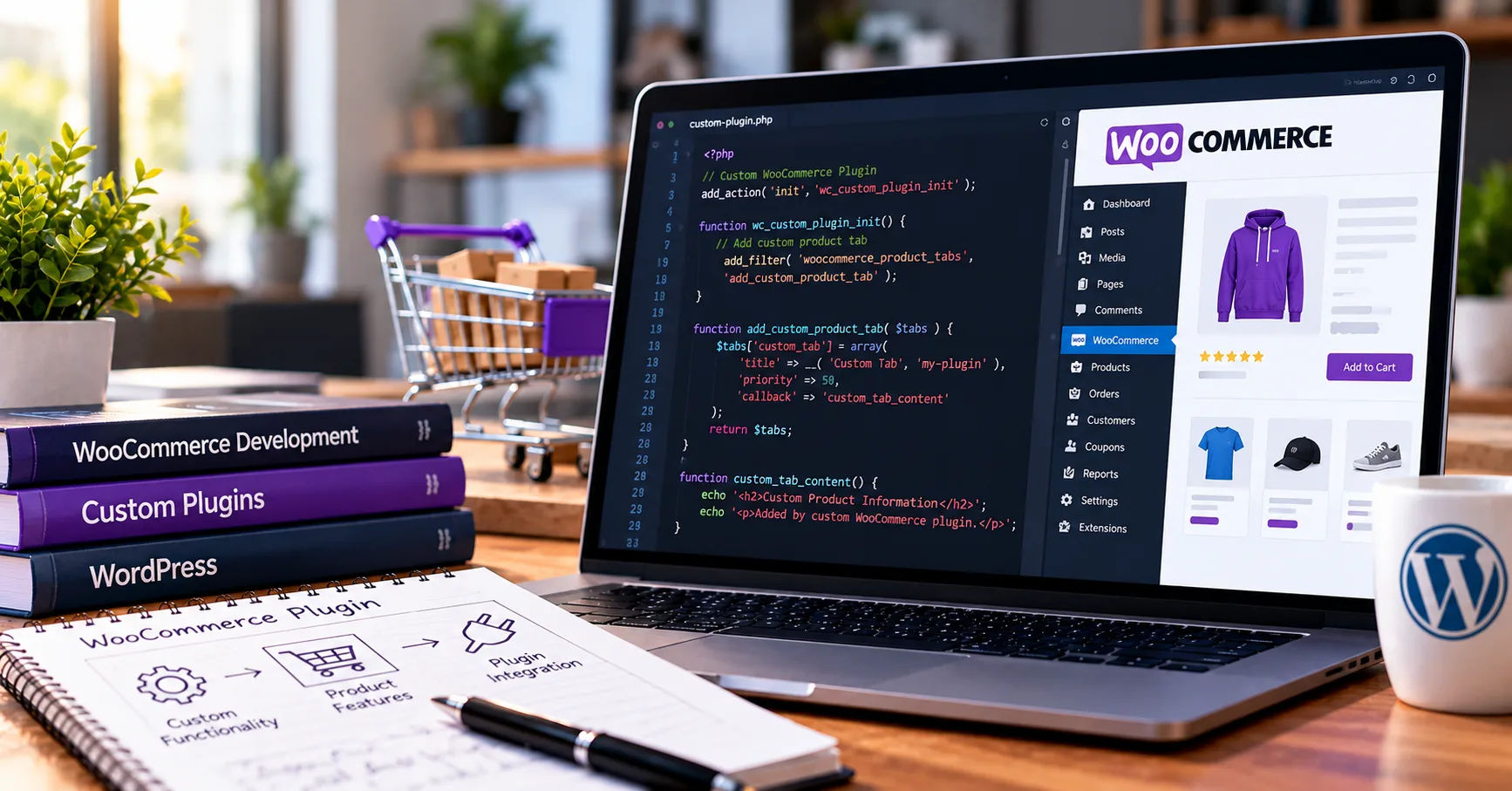 Understanding how to identify and fix these problems is an important part of successful woocommerce plugin development.
Debugging means finding the cause of a software problem and correcting it without creating new issues. It is not simply about removing error messages. Developers must understand why an error occurs, which part of the code causes it, and how the solution affects the rest of the website.
For example, a custom plugin might stop updating product prices, display an incorrect shipping fee, or prevent customers from completing checkout. These issues can affect customer trust and sales. A structured debugging process helps developers locate the source of the problem and create reliable solutions.
This comprehensive guide explains the tools, techniques, and practical steps used to debug WooCommerce plugins. It also covers common errors, security considerations, testing methods, and best practices that make troubleshooting easier for beginners and experienced developers alike.
Debugging in WooCommerce Plugins
What Is a WooCommerce Plugin?
A WooCommerce plugin is an extension that adds new features or changes existing functions in an online store. Developers use plugins to create custom payment methods, modify checkout fields, automate order updates, connect inventory systems, and improve store management.
These plugins commonly use PHP for server-side functionality, JavaScript for interactive features, and CSS for presentation. They may also interact with the WordPress database, WooCommerce APIs, external services, and other installed extensions.
Because these components work together, an issue in one area can affect several parts of a store.
Why Is Debugging Important?
Debugging helps developers identify problems before they cause serious business interruptions. A small coding mistake may prevent orders from being processed or cause incorrect information to appear on product pages.
A careful debugging process helps developers:
-
Identify the exact source of an error.
-
Prevent conflicts between plugins and themes.
-
Improve website performance and reliability.
-
Protect customer information and payment-related processes.
-
Reduce unexpected downtime.
-
Confirm that custom features work correctly after updates.
During woocommerce plugin development, debugging should be part of the regular workflow rather than something developers do only when a website breaks.
Setting Up a Safe Debugging Environment
Use a Staging Website
A staging website is a separate copy of a live store used for development and testing. It allows developers to investigate problems without affecting real customers, orders, or payments.
Before debugging a plugin, developers should create a staging environment with a configuration similar to the production website. This includes the WordPress version, WooCommerce version, PHP version, active theme, and relevant plugins.
Where possible, developers should use anonymized customer information and test payment credentials. They should also avoid sending real customer emails or triggering genuine transactions during testing.
Once a fix works correctly in staging, it can be reviewed and deployed to the live website through a controlled process.
Enable WordPress Debugging
WordPress includes built-in debugging features that help developers identify PHP errors, warnings, and notices. These settings are usually configured in the wp-config.php file.
For a development environment, the following configuration is commonly useful:
define( 'WP_DEBUG', true );
define( 'WP_DEBUG_LOG', true );
define( 'WP_DEBUG_DISPLAY', false );
The WP_DEBUG setting enables WordPress debugging. WP_DEBUG_LOG records relevant errors in the debug log, while WP_DEBUG_DISPLAY prevents errors from being displayed directly on website pages.
With a standard configuration, developers can often find the log at wp-content/debug.log. The exact behavior may depend on the hosting environment and other configuration settings.
These settings should be configured carefully. On a live website, displaying technical errors can expose file paths or other sensitive information. Debugging should therefore be limited, access-controlled, and disabled or appropriately adjusted when the investigation is complete.
Check PHP and Server Logs
WordPress logs are useful, but they may not capture every server-level problem. Hosting providers often offer PHP error logs, web server logs, and resource usage information.
Developers should examine these logs when a plugin causes a blank page, a server error, or a failure that does not appear in the WordPress debug log.
The error message and timestamp can help connect a failed request with the relevant code. This makes troubleshooting more focused and reduces unnecessary changes.
Essential Tools for Debugging WooCommerce Plugins
Browser Developer Tools
Modern browsers include developer tools that help investigate front-end problems. Developers can open them using the browser menu or keyboard shortcuts.
The Console tab displays JavaScript errors and warnings. The Network tab shows requests sent by the website and the responses received from the server.
These tools are particularly useful when a checkout button does not respond, an AJAX request fails, or a product variation does not update correctly.
For example, a request returning a 403 response may indicate a permissions or security issue, while a 500 response suggests a server-side failure. Developers should inspect the response details before deciding what caused the problem.
WordPress Query Monitor
Query Monitor is a debugging plugin that helps developers examine database queries, PHP errors, hooks, scripts, stylesheets, and other technical information.
It can show which component triggered a database query or generated an error. This is helpful when a custom extension conflicts with a theme or another plugin.
Developers should use such tools on staging websites or other controlled environments, especially when debugging sensitive store operations.
Xdebug
Xdebug is a PHP development tool that supports step-by-step debugging, stack traces, and variable inspection. When connected to a compatible code editor, it allows developers to pause execution at a breakpoint and examine how the program behaves.
Instead of guessing why a function returns the wrong value, a developer can inspect the input, follow the execution path, and determine where the result becomes incorrect.
Xdebug is especially useful for complex problems involving multiple functions, conditional statements, or interactions between plugins. It requires suitable server and editor configuration, so beginners may want to start with WordPress logs before using it.
WooCommerce Status and Logs
WooCommerce includes system status information that helps developers review store configuration, software versions, and certain environment-related problems.
WooCommerce also provides logging facilities for extensions and integrations. Depending on the version and logging setup, relevant records can be accessed through the WooCommerce administration interface or the underlying logging system.
For custom plugins, developers should create meaningful log messages that explain important events without recording passwords, payment credentials, access tokens, or unnecessary personal information.
A Step-by-Step Debugging Process
Step 1: Reproduce the Problem
The first step is to make the error happen consistently. Developers should record the actions that lead to the issue, such as adding a product to the cart, applying a coupon, or submitting checkout details.
They should also note the browser, user permissions, plugin versions, and conditions involved.
A problem that appears only when a customer is logged in may have a different cause from one that affects every visitor. Reproducing the error under controlled conditions provides a reliable starting point.
Step 2: Identify the Relevant Code
After reproducing the issue, developers should identify the functions, hooks, API requests, or templates involved.
They can review recent code changes, inspect the error logs, and search the plugin files for the relevant function or message.
During woocommerce plugin development, understanding WordPress hooks is particularly important. WooCommerce uses actions and filters to allow extensions to respond to events and modify data. An incorrectly registered callback or an unexpected filter result can create problems far beyond the original function.
Developers should trace the relevant execution path before changing code.
Step 3: Inspect Variables and Conditions
Many errors occur because a function receives unexpected data or assumes that information always exists.
For example, a plugin might expect a product object but receive an empty value. It might also assume that a cart contains an item when the cart is actually empty.
Developers should inspect variables, function arguments, return values, and conditional statements. They should confirm that the code handles missing information appropriately.
PHP's var_dump() and print_r() can help with basic inspection in a controlled development environment. However, developers should avoid printing sensitive values on public pages. Logging carefully selected information is often safer.
Step 4: Make One Change at a Time
Once the likely cause is identified, developers should make a small, targeted change. Changing several unrelated functions at once makes it difficult to determine which modification solved the issue.
After each change, they should repeat the original steps and check whether the error still occurs.
If the fix fails, developers can reverse the change and investigate another possibility. Version control systems such as Git make this process easier because they record code changes and support safe comparisons between versions.
Step 5: Test the Entire Workflow
A successful result in one situation does not guarantee that the plugin works everywhere.
A checkout fix, for example, should be tested with different products, customer types, shipping addresses, payment methods, and coupon conditions where relevant.
Developers should also test related workflows that might be affected by the change. A solution that fixes checkout but breaks order creation is not a complete solution.
Step 6: Document and Deploy the Fix
After confirming the solution, developers should record the cause of the error, the code changes made, and the tests performed.
The corrected plugin should be reviewed and deployed using the site's normal release process. Developers should monitor logs and key store operations after deployment to detect any unexpected side effects.
A documented solution also helps other team members understand the problem if it returns later.
Common Errors in WooCommerce Plugin Development
Plugin and Theme Conflicts
Plugin conflicts occur when two extensions or a theme modify the same functionality in incompatible ways. For example, one plugin might change checkout fields while another expects the original fields to remain unchanged.
Developers can investigate these problems by temporarily disabling nonessential plugins on a staging website and switching to a standard theme. If the issue disappears, they can reactivate components individually to identify the conflict.
They should never deactivate important security or payment components on a live store without an appropriate safety plan.
PHP Errors and Compatibility Problems
A plugin may stop working after a PHP, WordPress, or WooCommerce update. Common causes include outdated functions, incorrect type assumptions, deprecated features, and incompatible dependencies.
Developers should review error logs, check supported software versions, and consult the relevant documentation. They should also test against the versions the plugin claims to support.
Static analysis tools and automated tests can help identify potential problems before the code reaches production.
Database Query Errors
Custom plugins sometimes retrieve incorrect information or perform database operations inefficiently. These problems may cause missing products, inaccurate order information, or slow page loading.
Developers should inspect database queries and confirm that the correct tables, fields, and conditions are being used. They should use WordPress database APIs where appropriate and apply proper input validation and data handling.
Database changes should be tested carefully, especially when they affect orders, inventory, or customer records.
REST API and AJAX Errors
WooCommerce plugins often communicate with other systems through REST APIs or use AJAX for interactive features.
When a request fails, developers should examine the request URL, HTTP method, response status, response body, authentication, and permissions. They should also verify whether the expected data format matches what the receiving function requires.
For asynchronous operations, developers must account for network failures, timeouts, and unexpected responses rather than assuming every request succeeds.
Writing Better Debugging Code
Use Clear Error Messages
Good error messages explain what failed and provide enough context to investigate the problem. A message such as "Payment configuration is missing" is more useful than a generic statement that an operation failed.
Developers should include relevant identifiers and technical context when appropriate, but avoid placing sensitive customer information in logs.
Clear messages reduce troubleshooting time and make it easier for another developer to understand the issue.
Validate Inputs and Handle Exceptions
Plugins should never assume that incoming information is valid. Data from forms, API requests, URL parameters, and external services must be checked before use.
WordPress provides functions such as sanitize_text_field() for suitable text sanitization and wp_verify_nonce() for nonce verification. Developers must choose validation and security methods appropriate to the data and operation.
Where exceptions are used, they should be caught and handled at suitable boundaries. Errors should be logged when useful, while customers receive understandable messages that do not reveal internal technical details.
Follow WordPress and WooCommerce Standards
Established coding standards make plugins easier to review, maintain, and debug. Developers should use appropriate naming conventions, follow documented APIs, and avoid modifying WordPress or WooCommerce core files.
They should also review current WooCommerce developer documentation when using hooks, order objects, product data, or checkout functionality. Some older implementation patterns may not work correctly with newer WooCommerce features, including High-Performance Order Storage.
Using supported APIs reduces compatibility risks and makes future updates easier.
Testing and Preventing Future Problems
Write Automated Tests
Automated tests help developers check whether plugin functions produce the expected results. Unit tests can evaluate individual functions, while integration tests examine how the plugin works with WordPress and WooCommerce.
For example, a discount plugin might need tests for valid coupons, expired coupons, minimum purchase requirements, and products excluded from promotions.
Automated tests can be run whenever the code changes, helping developers catch regressions before deployment.
Use Version Control
Git allows developers to track changes, compare versions, and restore earlier code when necessary. It also supports collaboration between team members.
A useful workflow includes creating a separate branch for a fix, testing the changes, reviewing the code, and merging it only after the relevant checks pass.
This approach makes debugging more organized and reduces the risk of losing working code.
Monitor Performance and Security
Some plugin problems appear only under heavy traffic or unusual input conditions. Developers should monitor slow queries, excessive API calls, memory consumption, and repeated errors.
Security testing is equally important. Developers should check access permissions, nonce verification, input validation, output escaping, and database query safety. Debugging should never introduce a security weakness while correcting a functional problem.
Best Practices for Efficient Debugging
An organized process helps developers solve problems faster and avoid unnecessary changes.
The following practices are especially valuable:
-
Reproduce the issue before editing the code.
-
Work in a staging environment whenever possible.
-
Read error logs before guessing at the cause.
-
Change one thing at a time and retest.
-
Use supported WordPress and WooCommerce APIs.
-
Keep debugging information free of sensitive data.
-
Test important customer journeys after every significant fix.
-
Maintain backups and version control.
-
Review compatibility with supported software versions.
-
Document solutions so recurring problems are easier to resolve.
Successful woocommerce plugin development depends on more than writing code that works once. Developers must create extensions that remain dependable when store conditions, software versions, and customer needs change.
Conclusion
Debugging is an essential part of building dependable WooCommerce extensions. It helps developers identify errors, understand their causes, and correct problems before they disrupt important store operations. A structured approach also reduces the risk of introducing new bugs while fixing existing ones.
The process begins with reproducing the problem in a safe environment. Developers can then use WordPress debugging settings, server logs, browser developer tools, Query Monitor, and Xdebug to gather useful evidence. By examining the relevant code, inspecting variables, and testing one change at a time, they can identify the underlying cause instead of relying on guesswork.
Common challenges include plugin conflicts, PHP compatibility issues, database errors, and failed API requests. These problems become easier to manage when developers follow established coding standards, validate inputs, use supported APIs, and write clear error messages.
Testing is equally important. A fix should be checked against the original problem and related store workflows. Automated tests, version control, staging environments, and careful deployment procedures help maintain reliability as a plugin evolves.
Ultimately, woocommerce plugin development requires a combination of technical knowledge, patience, careful observation, and consistent testing. Developers who treat debugging as a regular part of their work can build safer, faster, and more maintainable extensions. By following these practices, they can protect store functionality, improve the customer experience, and support the long-term success of WooCommerce websites.
